
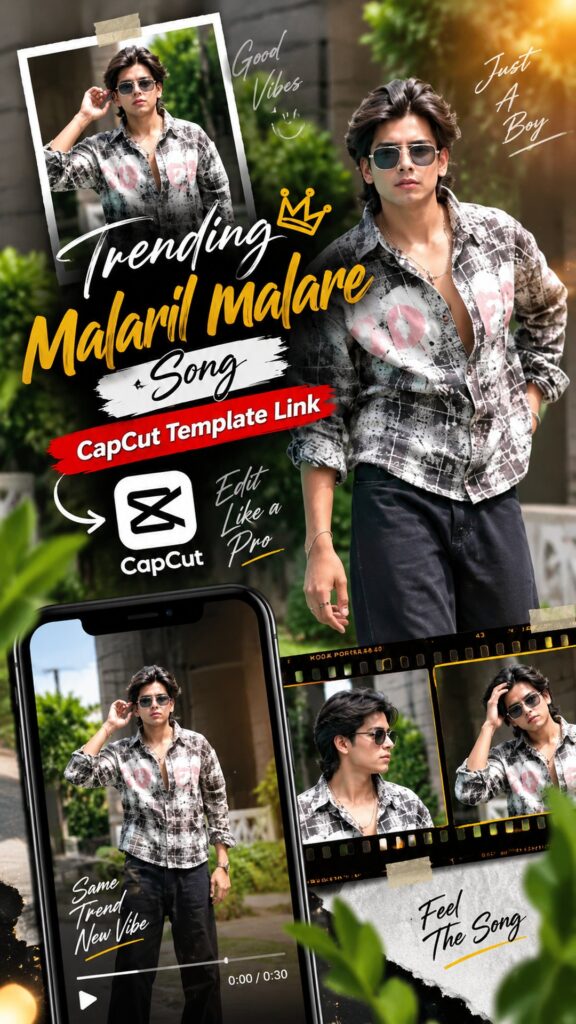
The Malaril Malare edit has been spreading through Reels all week — a slow, romantic song carrying a soft, nostalgic cut. The CapCut template below already holds the timing, transitions and colour work, so you only drop in your own photos and export. Full guide in English, Hindi and Gujarati.
Opens in the CapCut app · Free · No login required
Template details
| Template name | Malaril Malare Song Reel Edit |
| Aspect ratio | 9:16 |
| Media type | Photos or short video clips |
| Song | Malaril Malare — S. P. Balasubrahmanyam |
| Editing style | Soft transitions, slow zooms, warm nostalgic grade |
| Best for | Instagram Reels, WhatsApp status, YouTube Shorts, Facebook Reels |
| Difficulty | Beginner — no editing skill needed |
English — Full Guide
What you actually get
This is a finished edit with the clip slots left empty. The cuts are already matched to the song, the zooms drift at the pace the melody sets, and the grade leans warm and slightly faded. None of that changes when you open it — you are placing your photos into a sequence that has already been built and tested.
Malaril Malare is a 1996 track by S. P. Balasubrahmanyam from the Anbaalayam soundtrack, and the edit built around it is gentler than most trending templates. It suits couple photos, family memories, old pictures and anything you want to feel wistful rather than loud.
Why this edit took off
Most trending templates chase energy — fast cuts, hard zooms, a beat you can feel. This one goes the other way, and that is exactly why it stands out in a feed full of the first kind. A slow song gives each photo room to sit on screen long enough to register.
It also asks very little of you. The structure is fixed, so the only variable left is the media you pick — which is where a reel is won or lost.
How to use this template, step by step
Open the template link
Tap the Use Template on CapCut button above. CapCut opens straight into a preview screen for this template.
Tap "Use template"
If the template is still public and matches your CapCut version, a Use template button appears at the bottom. Tapping it opens the project in CapCut with your gallery ready.
Choose your photos or video clips
Now choose the photos or video clips you want in your reel. Try to select clear, high-quality media — portrait photos and vertical clips usually work best for social media. The number of clips required varies from template to template, so just fill the slots CapCut asks for. The order you tap is the order they play.
Adjust the framing
Tap any clip on the timeline and pinch or drag until the subject sits mid-frame. This template zooms slowly rather than sharply, so a face near the edge drifts further out as the shot moves — worth a few seconds per clip.
Preview the whole thing
Play it start to finish. CapCut has already applied the transitions, effects and timing, so you are only checking that each photo sits where you want it and nothing important is cropped out.
Export and share
Tap export, choose the quality you want, and the reel saves to your device. From there it goes straight to Instagram Reels, Facebook, YouTube Shorts or WhatsApp status. Delete the CapCut outro clip first if you would rather not include it.
Tips for a better reel
- Pick photos that share a mood. This edit is slow enough that a jarring shot stands out.
- Older or slightly soft photos suit this one — the grade is already nostalgic, so they fit rather than look dated.
- Keep faces near the centre so the slow zoom does not push them out of frame.
- Similar lighting across your photos keeps the reel feeling like one piece.
- Post while the song is still trending — timing matters as much as editing.
Template not working?
A template link can fail for a few reasons: the creator may have removed it, the link may have expired, it may not be available in your region, or your CapCut app may be out of date. Update CapCut and open the link again. If it still does not load, the template has most likely been taken down — that does not mean anything is wrong with your phone.
Stay safe: only open official capcut.com links. Never download templates or modified CapCut APK files from unknown websites.
हिंदी — पूरी जानकारी
इसमें आपको क्या मिलता है
यह एक पूरी तरह तैयार एडिट है जिसमें सिर्फ़ क्लिप की जगहें ख़ाली रखी गई हैं। कट्स गाने के साथ पहले से मिले हुए हैं, ज़ूम धुन की रफ़्तार से चलते हैं, और कलर ग्रेड हल्का गर्म और थोड़ा फीका रखा गया है। खोलने पर इनमें कुछ नहीं बदलता — आप बस अपनी फ़ोटो एक बनी-बनाई सीक्वेंस में रख रहे होते हैं।
मलरिल मलारे 1996 की अंबालयम फ़िल्म का गाना है, गाया है एस. पी. बालासुब्रह्मण्यम ने। इस पर बना एडिट बाक़ी ट्रेंडिंग टेम्पलेट से ज़्यादा शांत है — कपल फ़ोटो, पुरानी यादें और फ़ैमिली तस्वीरों पर बहुत अच्छा लगता है।
यह एडिट क्यों चल पड़ा
ज़्यादातर ट्रेंडिंग टेम्पलेट तेज़ी के पीछे भागते हैं — तेज़ कट, ज़ोरदार ज़ूम, बीट जो महसूस हो। यह उल्टी दिशा में जाता है, और इसी वजह से भरी हुई फ़ीड में अलग दिखता है। धीमा गाना हर फ़ोटो को स्क्रीन पर ठहरने का वक़्त देता है।
और आपसे माँगता भी कम है। स्ट्रक्चर तय है, इसलिए बदलने लायक़ एक ही चीज़ बचती है — आपकी चुनी हुई फ़ोटो, और असली फ़र्क़ वहीं पड़ता है।
टेम्पलेट इस्तेमाल करने का तरीका
टेम्पलेट लिंक खोलें
ऊपर दिया Use Template on CapCut बटन दबाएँ। CapCut सीधे इस टेम्पलेट की प्रीव्यू स्क्रीन पर खुलेगा।
"Use template" दबाएँ
अगर टेम्पलेट अब भी पब्लिक है और आपके CapCut वर्ज़न से मेल खाता है, तो नीचे Use template बटन दिखेगा। दबाते ही प्रोजेक्ट CapCut में खुलेगा और गैलरी तैयार मिलेगी।
अपनी फ़ोटो या क्लिप चुनें
अब वे फ़ोटो या वीडियो क्लिप चुनें जो आप अपनी रील में रखना चाहते हैं। साफ़ और अच्छी क्वालिटी का मीडिया चुनने की कोशिश करें — पोर्ट्रेट फ़ोटो और वर्टिकल क्लिप सोशल मीडिया के लिए आम तौर पर सबसे अच्छी रहती हैं। कितनी क्लिप चाहिए यह हर टेम्पलेट में अलग होता है, इसलिए CapCut जितने स्लॉट माँगे उतने भर दें। जिस क्रम में टैप करेंगे, उसी क्रम में चलेंगी।
फ़्रेमिंग ठीक करें
टाइमलाइन पर क्लिप दबाकर पिंच या ड्रैग करें और चेहरा फ़्रेम के बीच लाएँ। यह टेम्पलेट धीरे-धीरे ज़ूम करता है, इसलिए किनारे वाला चेहरा शॉट बढ़ने के साथ और बाहर चला जाता है — हर क्लिप पर कुछ सेकंड देना सही रहता है।
पूरा प्रीव्यू देखें
शुरू से आख़िर तक चलाकर देखें। ट्रांज़िशन, इफ़ेक्ट और टाइमिंग CapCut पहले ही लगा चुका है, आपको सिर्फ़ यह देखना है कि हर फ़ोटो सही जगह है और कुछ ज़रूरी हिस्सा कट तो नहीं रहा।
एक्सपोर्ट करके शेयर करें
एक्सपोर्ट दबाएँ, क्वालिटी चुनें, और रील आपके फ़ोन में सेव हो जाएगी। वहाँ से सीधे Instagram Reels, Facebook, YouTube Shorts या WhatsApp स्टेटस पर डाल सकते हैं। CapCut का आख़िरी लोगो क्लिप नहीं चाहिए तो पहले हटा दें।
बेहतर रील बनाने के टिप्स
- एक जैसे मूड वाली फ़ोटो चुनें। यह एडिट इतना धीमा है कि बेमेल फ़ोटो तुरंत पकड़ में आ जाती है।
- पुरानी या थोड़ी सॉफ़्ट फ़ोटो इसमें अच्छी लगती हैं — ग्रेड पहले से नॉस्टैल्जिक है, इसलिए वे घुल-मिल जाती हैं।
- चेहरा बीच में रखें ताकि धीमे ज़ूम में वह फ़्रेम से बाहर न जाए।
- मिलती-जुलती लाइटिंग वाली फ़ोटो पूरी रील को एक जैसा रखती हैं।
- गाना ट्रेंड में रहते हुए ही पोस्ट करें — टाइमिंग उतनी ही अहम है जितनी एडिटिंग।
टेम्पलेट काम नहीं कर रहा?
लिंक कई वजहों से काम नहीं करता: क्रिएटर ने हटा दिया हो, लिंक एक्सपायर हो गया हो, आपके क्षेत्र में उपलब्ध न हो, या CapCut ऐप पुराना हो। ऐप अपडेट करके दोबारा खोलें। फिर भी न चले तो टेम्पलेट हटा दिया गया है — इसका मतलब आपके फ़ोन में कोई दिक्कत नहीं है।
सावधानी: सिर्फ़ ऑफिशियल capcut.com लिंक खोलें। अनजान वेबसाइट से CapCut का मॉड APK कभी डाउनलोड न करें।
ગુજરાતી — સંપૂર્ણ માહિતી
આમાં તમને શું મળે છે
આ સંપૂર્ણ તૈયાર એડિટ છે જેમાં ફક્ત ક્લિપની જગ્યાઓ ખાલી રાખી છે. કટ્સ ગીત સાથે પહેલેથી ગોઠવેલા છે, ઝૂમ ધૂનની ગતિએ ચાલે છે, અને કલર ગ્રેડ હળવો ગરમ અને થોડો ઝાંખો રાખ્યો છે. ખોલવાથી આમાં કશું બદલાતું નથી — તમે ફક્ત તમારા ફોટા તૈયાર સીક્વન્સમાં મૂકો છો.
મલરિલ મલારે 1996ની અંબાલયમ ફિલ્મનું ગીત છે, ગાયું છે એસ. પી. બાલાસુબ્રહ્મણ્યમે. તેના પર બનેલું એડિટ બીજા ટ્રેન્ડિંગ ટેમ્પલેટ કરતાં વધુ શાંત છે — કપલ ફોટા, જૂની યાદો અને ફેમિલી તસવીરો પર ખૂબ સારું લાગે છે.
આ એડિટ કેમ ચાલી નીકળ્યું
મોટાભાગનાં ટ્રેન્ડિંગ ટેમ્પલેટ ઝડપની પાછળ દોડે છે — ઝડપી કટ, જોરદાર ઝૂમ, અનુભવાય તેવી બીટ. આ ઊલટી દિશામાં જાય છે, અને એટલે જ ભરચક ફીડમાં અલગ તરી આવે છે. ધીમું ગીત દરેક ફોટાને સ્ક્રીન પર ટકવાનો સમય આપે છે.
અને તમારી પાસેથી માગે પણ ઓછું છે. સ્ટ્રક્ચર નક્કી છે, એટલે બદલવા જેવી એક જ વસ્તુ બચે છે — તમે પસંદ કરેલા ફોટા, અને ખરો ફરક ત્યાં જ પડે છે.
ટેમ્પલેટ વાપરવાની રીત
ટેમ્પલેટ લિંક ખોલો
ઉપર આપેલું Use Template on CapCut બટન દબાવો. CapCut સીધું આ ટેમ્પલેટની પ્રીવ્યૂ સ્ક્રીન પર ખૂલશે.
"Use template" દબાવો
જો ટેમ્પલેટ હજુ પબ્લિક હોય અને તમારા CapCut વર્ઝન સાથે મેળ ખાતું હોય, તો નીચે Use template બટન દેખાશે. દબાવતાં જ પ્રોજેક્ટ CapCut માં ખૂલશે અને ગેલેરી તૈયાર મળશે.
તમારા ફોટા કે ક્લિપ પસંદ કરો
હવે તમારી રીલમાં જે ફોટા કે વિડિયો ક્લિપ રાખવા હોય તે પસંદ કરો. સ્પષ્ટ અને સારી ક્વોલિટીનું મીડિયા પસંદ કરવાનો પ્રયાસ કરો — પોર્ટ્રેટ ફોટા અને વર્ટિકલ ક્લિપ સોશિયલ મીડિયા માટે સામાન્ય રીતે સૌથી સારાં રહે છે. કેટલી ક્લિપ જોઈએ તે દરેક ટેમ્પલેટમાં અલગ હોય છે, એટલે CapCut જેટલા સ્લોટ માગે એટલા ભરી દો. જે ક્રમમાં ટૅપ કરશો, એ જ ક્રમમાં ચાલશે.
ફ્રેમિંગ ગોઠવો
ટાઇમલાઇન પર ક્લિપ દબાવીને પિંચ કે ડ્રૅગ કરો અને ચહેરો ફ્રેમની વચ્ચે લાવો. આ ટેમ્પલેટ ધીમે ધીમે ઝૂમ કરે છે, એટલે કિનારાનો ચહેરો શોટ આગળ વધતાં વધુ બહાર જતો રહે છે — દરેક ક્લિપ પર થોડી સેકન્ડ આપવી યોગ્ય છે.
આખું પ્રીવ્યૂ જુઓ
શરૂથી અંત સુધી ચલાવીને જુઓ. ટ્રાન્ઝિશન, ઇફેક્ટ અને ટાઇમિંગ CapCut પહેલેથી લગાવી ચૂક્યું છે, તમારે ફક્ત એ જોવાનું છે કે દરેક ફોટો યોગ્ય જગ્યાએ છે અને કંઈ જરૂરી ભાગ કપાતો નથી.
એક્સપોર્ટ કરીને શેર કરો
એક્સપોર્ટ દબાવો, ક્વોલિટી પસંદ કરો, અને રીલ તમારા ફોનમાં સેવ થશે. ત્યાંથી સીધું Instagram Reels, Facebook, YouTube Shorts કે WhatsApp સ્ટેટસ પર મૂકી શકાશે. CapCut નો છેલ્લો લોગો ક્લિપ ન જોઈતો હોય તો પહેલાં કાઢી નાખો.
સારી રીલ બનાવવાની ટિપ્સ
- સરખા મૂડવાળા ફોટા પસંદ કરો. આ એડિટ એટલું ધીમું છે કે બેમેળ ફોટો તરત ધ્યાનમાં આવે છે.
- જૂના કે થોડા સોફ્ટ ફોટા આમાં સારા લાગે છે — ગ્રેડ પહેલેથી નોસ્ટાલ્જિક છે, એટલે તે ભળી જાય છે.
- ચહેરો વચ્ચે રાખો જેથી ધીમા ઝૂમમાં તે ફ્રેમની બહાર ન જાય.
- મળતી આવતી લાઇટિંગવાળા ફોટા આખી રીલને એકસરખી રાખે છે.
- ગીત ટ્રેન્ડમાં હોય ત્યારે જ પોસ્ટ કરો — ટાઇમિંગ એડિટિંગ જેટલું જ મહત્ત્વનું છે.
ટેમ્પલેટ કામ નથી કરતું?
લિંક ઘણાં કારણોસર કામ ન કરે: ક્રિએટરે હટાવી દીધી હોય, લિંક એક્સપાયર થઈ હોય, તમારા વિસ્તારમાં ઉપલબ્ધ ન હોય, અથવા CapCut ઍપ જૂની હોય. ઍપ અપડેટ કરીને ફરી ખોલો. તો પણ ન ચાલે તો ટેમ્પલેટ હટાવી દેવાયું છે — તમારા ફોનમાં કોઈ તકલીફ નથી.
સાવચેતી: ફક્ત ઑફિશિયલ capcut.com લિંક ખોલો. અજાણી વેબસાઇટ પરથી CapCut નું મોડ APK ક્યારેય ડાઉનલોડ ન કરો.
Need photos for this template?
Good source photos make the difference here. If you are short of shots that suit this edit, use these AI photo prompts to create some:
